AI Beat Maker
Describe your project and shape the groove, low end, and instrumental arrangement before generation.
Original local synthesizer demos, not AI-generated results. Music generation, accounts, and credits are not connected.
Describe your project and shape the groove, low end, and instrumental arrangement before generation.
Original local synthesizer demos, not AI-generated results. Music generation, accounts, and credits are not connected.
An AI beat maker builds a musical direction from a description of groove, drums, bass, and atmosphere. It differs from manually programming each hit in a drum machine. This workspace helps you prepare an instrumental brief, choose sound tags, and explore original demos; new beat generation is not connected yet.
Start with the project, then shape the groove, low end, and space around the lead.
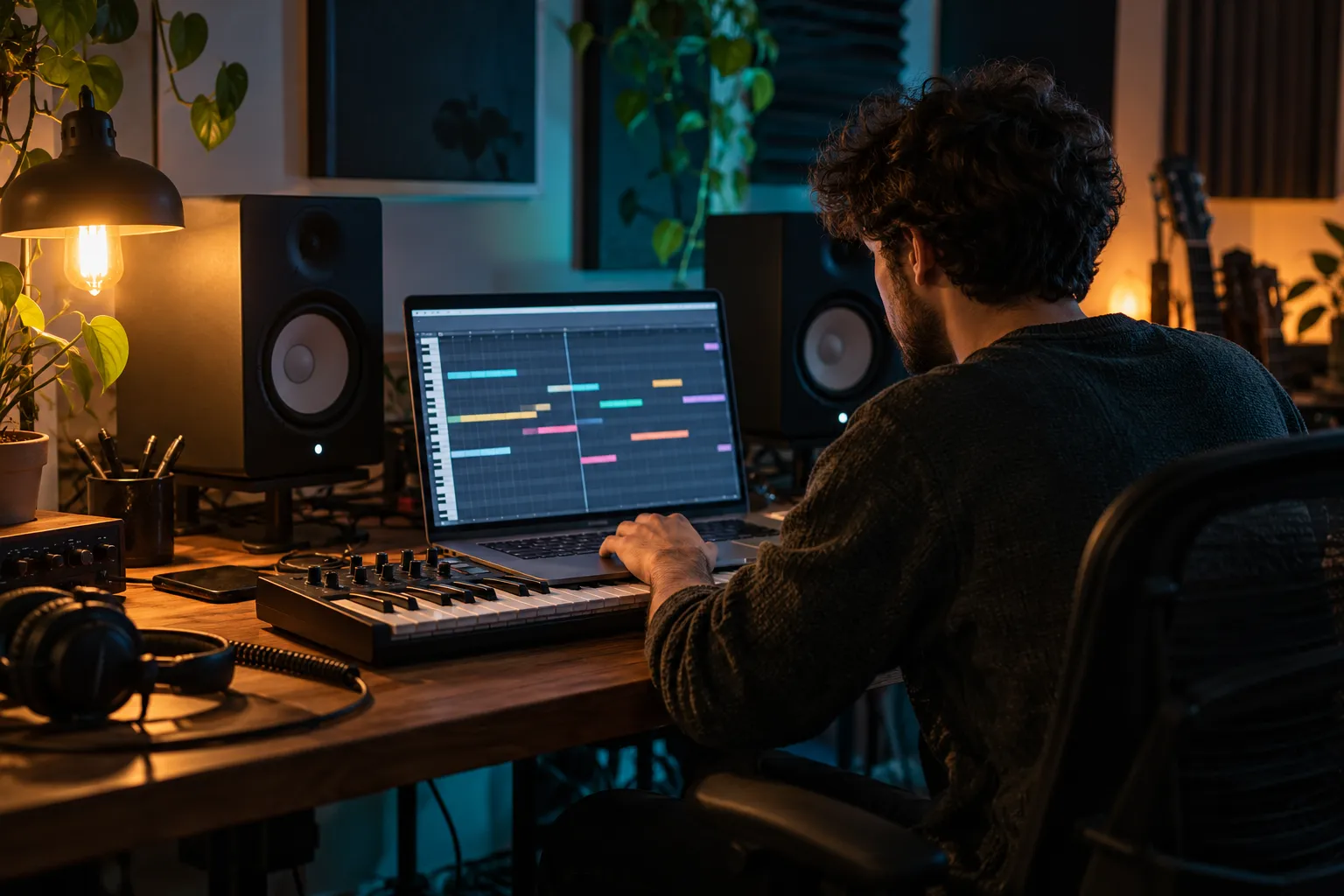
Name the job: a rap demo, product reel, podcast opening, or late-night study track. Explain whether the beat should stay in the background or build toward a hook. A concrete setting gives drum and bass choices something useful to support.

Choose a pocket before collecting tags. Crisp trap hats, dusty boom-bap drums, soft lo-fi swing, and restrained R&B percussion each suggest different movement. Describe how the kick and bass should interact, rather than asking for every sound to be the loudest.
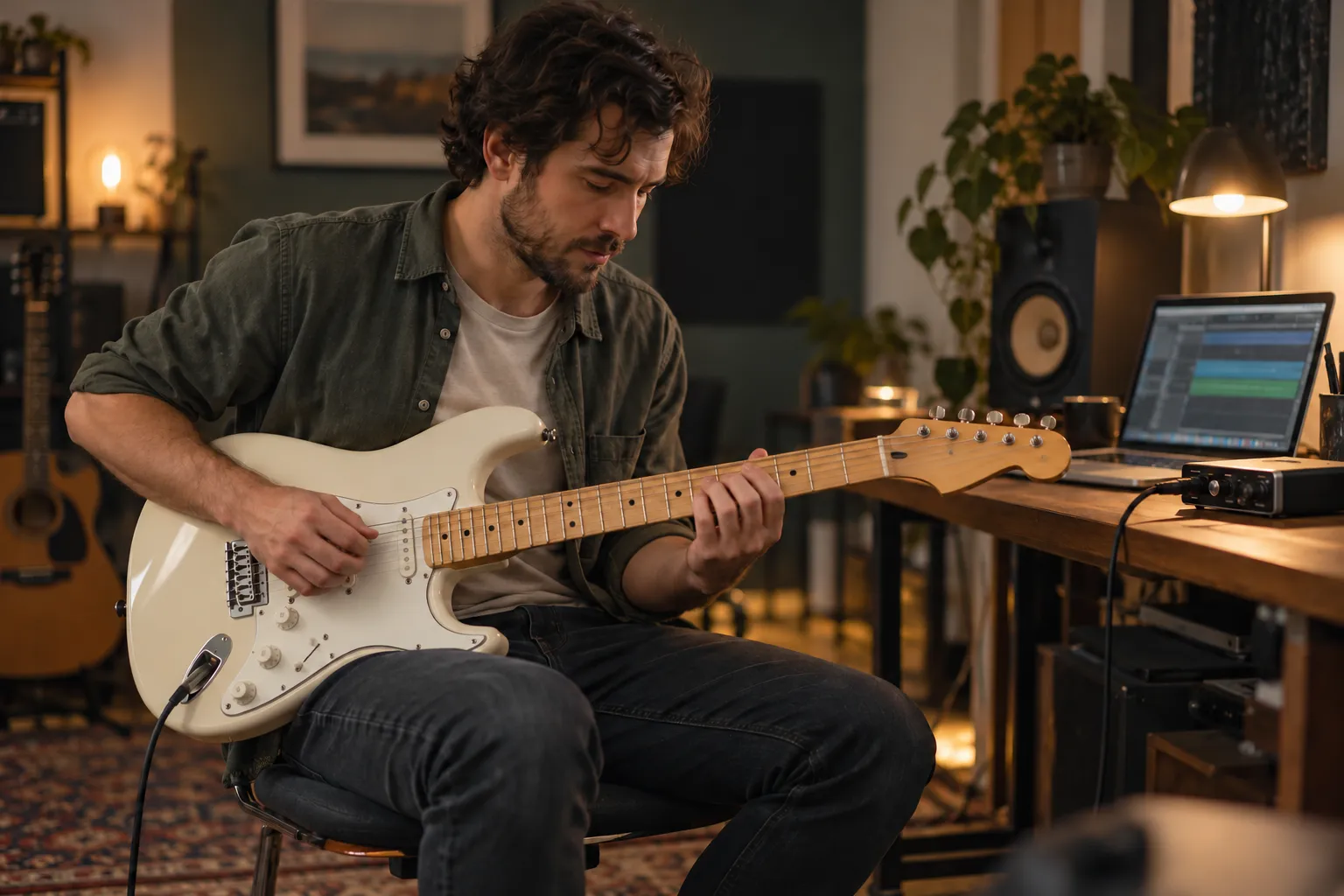
A useful backing track supports what sits above it. Ask for a sparse verse, a wider chorus, or a clean center for narration. Keep the Instrumental Only setting on for a beat without a singer, or add lyrics when you want to prepare a vocal sketch.
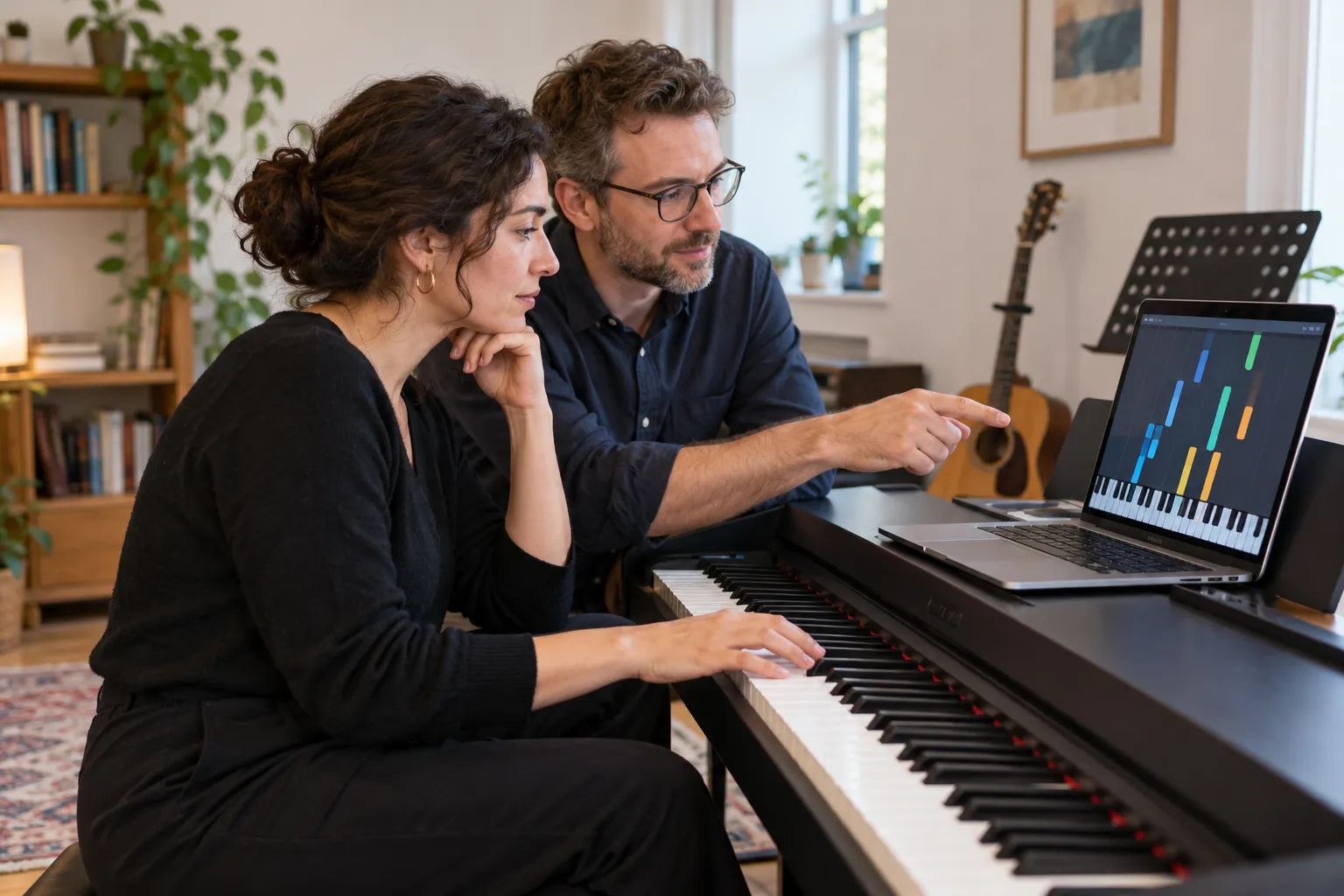
The strongest beat is the one that works with the performance or edit. Compare the drum accents, bass movement, transition energy, and amount of empty space. Use the local demos to explore playback while treating any future generated audio as material to review, not an automatic finished production.
Make focused choices about purpose, sound, and fit.
Say where the instrumental will play and how it should move. Mention open verses, a hook lift, or a steady background groove.
Pick a main style, then add drum character, bass movement, tempo feel, and a production texture. Remove contradictory tags.
Read the brief against your actual project. The current Generate button explains the missing service connection and does not create audio or spend credits.
A clear groove gives different kinds of projects a useful starting point.
Plan the space around your cadence, hook, and ad-libs. A sparse verse can leave room for words while the chorus supports a larger vocal moment.
Describe music that follows the edit without masking speech. Think about a clear opening, steady middle, and distinct transition points.
Compare musical directions before committing to detailed arrangement. Use a brief to distinguish drum feel, harmonic density, and production texture.
Start with a scene and a few sounds you recognize. Learn to explain what works and what needs changing before opening a full production session.
Get clearer about prompts, instrumentals, style choices, and current availability.
A connected beat generator can interpret a brief as an instrumental arrangement with drums, bass, harmony, and musical structure. This preview currently prepares the brief but does not generate a new beat.
Neither is required to explore the form. Plain descriptions of mood, rhythm, instruments, and intended use are enough to begin organizing a direction.
The Instrumental Only control is enabled by default on this page. It prepares that preference for a future request; audio generation remains disconnected.
Try trap, hip-hop, boom bap, lo-fi, R&B, pop, electronic, cinematic, drill, house, funk, or ambient. Treat tags as direction rather than a promise of a specific output.
Name the project and one genre, then specify the drum pocket, bass weight, mood, and room needed for the lead. Two or three concrete sound cues are a good starting point.
Yes. Use Own Lyrics to prepare words and vocal direction, or keep instrumental mode and describe a sparse verse or open center for a later recording.
Credit billing is not connected in this preview. Clicking Generate does not spend credits and does not return a newly generated beat.
The sample files demonstrate downloads. Commercial rights for future generated beats must be confirmed under the actual service terms, along with rights to any lyrics or source material.